

Client Folders
Managing domains for one client is straightforward. Managing them for twenty clients in a flat list isn’t - that’s what client folders are built to solve. Available on Agency.
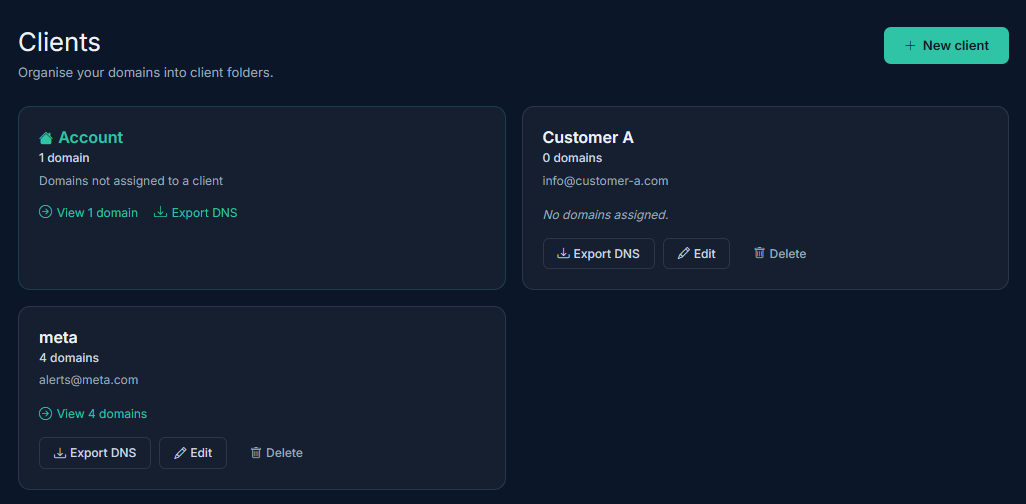
Client folders group domains by the client they belong to, so you can see at a glance which domains are whose, filter activity and alerts by client, and keep client-specific information (like a billing contact) attached to the right set of domains.
Creating a client
Section titled “Creating a client”From Clients, click Add client and enter a name, optional contact email, and notes. There’s no limit on the number of clients you can create.
Assigning domains
Section titled “Assigning domains”Domains can be assigned to a client when adding or importing them, or reassigned later from the domain’s detail panel. A domain belongs to exactly one client at a time, or to none.
The Account bucket
Section titled “The Account bucket”Domains that aren’t assigned to any client aren’t lost in the gaps - they’re grouped under a dedicated Account view, representing domains you manage directly rather than on behalf of a client. This keeps “my own domains” and “client domains” visibly separate without forcing every domain into a client folder.
Filtering by client
Section titled “Filtering by client”The Domains and Activity pages both support filtering by client, so you can pull up exactly what one client’s domains look like - useful when a client asks for a status update, or when you’re auditing one account specifically.
Deleting a client
Section titled “Deleting a client”When you delete a client, you choose what happens to their domains: unassign them back to your Account, or delete them entirely along with their monitoring history. Expirity asks explicitly rather than guessing.
Related
Section titled “Related”- Per-Client Alert Routing
- Team Members & Roles
- Bulk Import - importing directly into a client folder